> For the complete documentation index, see [llms.txt](https://docs.rh-webdesign.com/cms-bundle/llms.txt). Markdown versions of documentation pages are available by appending `.md` to page URLs; this page is available as [Markdown](https://docs.rh-webdesign.com/cms-bundle/en/elemente/navigation/table-of-contents.md).

# Table of contents

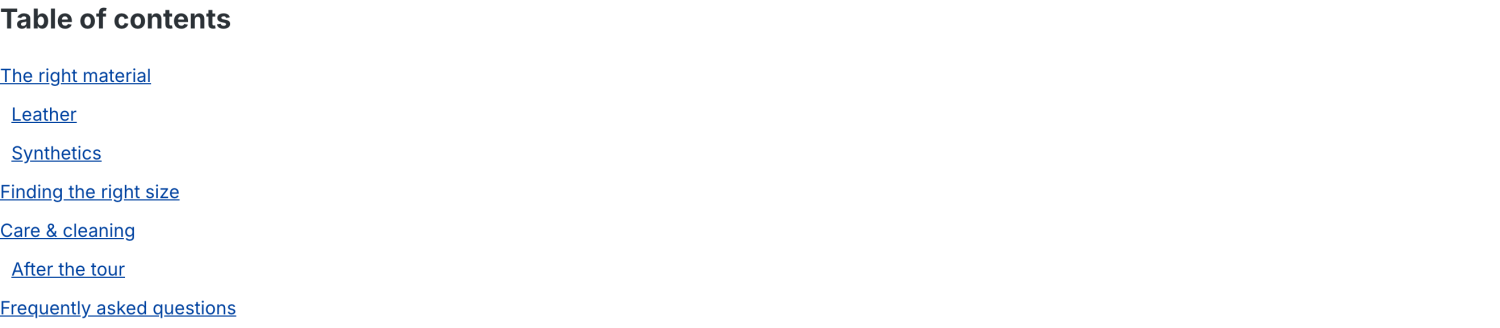
The **Table of contents** element scans the current page for headings and automatically builds a clickable anchor list from them. Clicking an entry scrolls smoothly to the matching spot and briefly highlights the section – ideal for long guides, detailed product descriptions or extensive shopping experiences.

You decide which headings are included – via the heading level (h1 to h6) and/or your own CSS selectors – and which areas stay excluded. The nesting of levels is taken over automatically, so subheadings appear indented under their main heading.

<figure><img src="/files/0uWfmXqDTQ6ia8VlPSuN" alt=""><figcaption><p>Example in the storefront: the table of contents automatically links to the page's headings and reflects their hierarchy.</p></figcaption></figure>

{% hint style="success" %}
**Tip for good orientation**

Place the element as high up as possible on a long page. This gives your visitors an immediate overview of all content and lets them jump directly to the desired section with one click.
{% endhint %}

### General

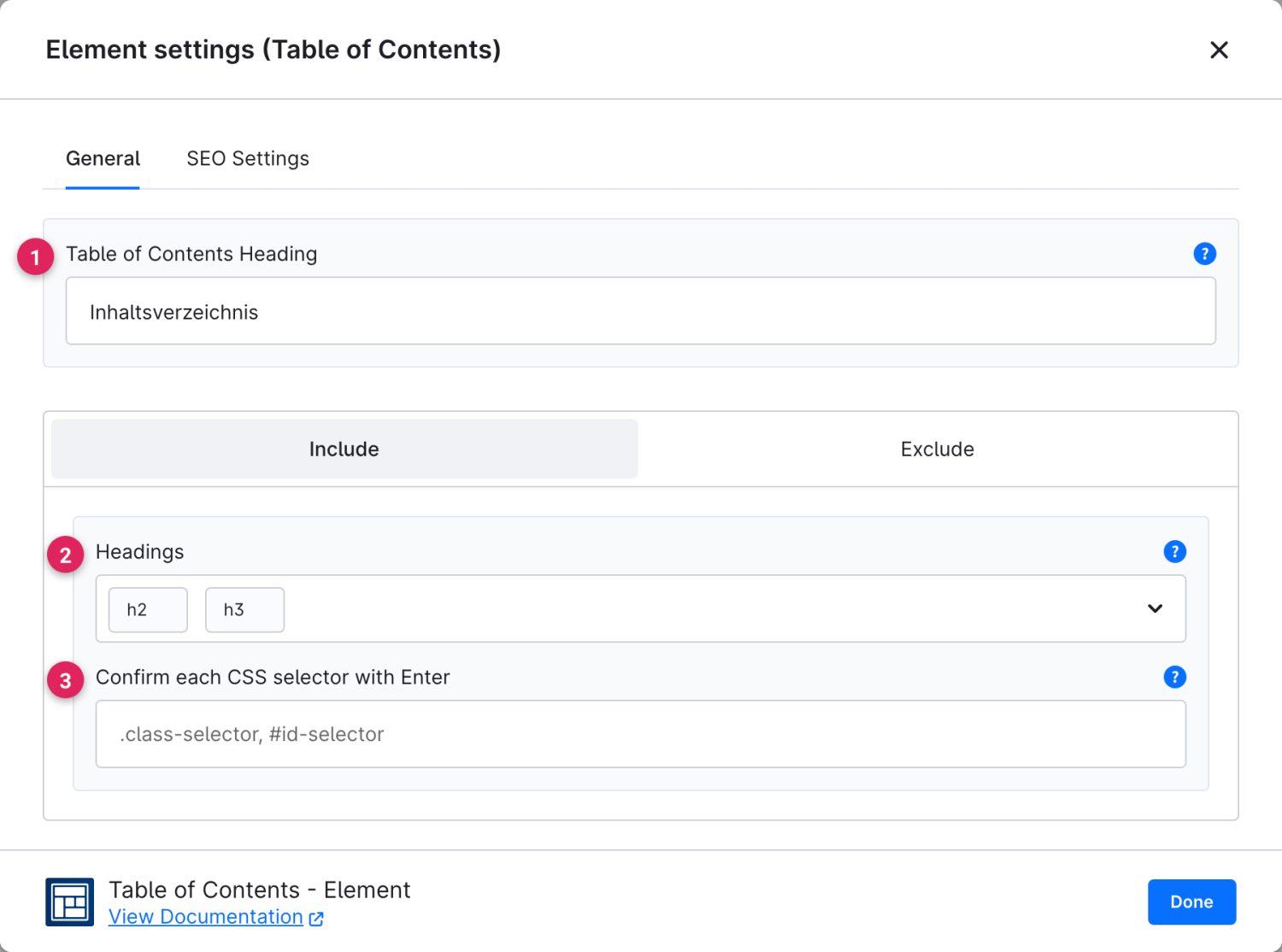
On the **General** tab you set the heading of the index and control which content is taken over as anchors. The two sub-tabs **Include** and **Exclude** group the respective sources.

<figure><img src="/files/KSEq5KkUFhV7xQHFLEhE" alt=""><figcaption></figcaption></figure>

<table><thead><tr><th width="287">Function</th><th>Description</th></tr></thead><tbody><tr><td>Table of Contents Heading (1)</td><td>Optional heading shown above the link list. If the field stays empty, only the list appears. You set the heading type (h1–h6) and the behaviour on the <strong>SEO</strong> tab.</td></tr><tr><td>Headings (2)</td><td>Choose the heading levels (<strong>h1</strong> to <strong>h6</strong>) that are automatically taken over as anchors. The table of contents reflects the order and nesting on the page hierarchically.</td></tr><tr><td>Confirm each CSS selector with Enter – Include (3)</td><td>In addition to the headings, you can include individual sections, blocks or elements via CSS selector (e.g. <code>.my-class</code> or <code>#my-id</code>). Confirm each selector individually with <strong>Enter</strong>.</td></tr></tbody></table>

{% hint style="info" %}
**Include & Exclude**

With the two sub-tabs **Include** and **Exclude** you separate the sources cleanly: on the left you determine what ends up in the index, on the right you specifically exclude individual areas again.
{% endhint %}

### Exclude

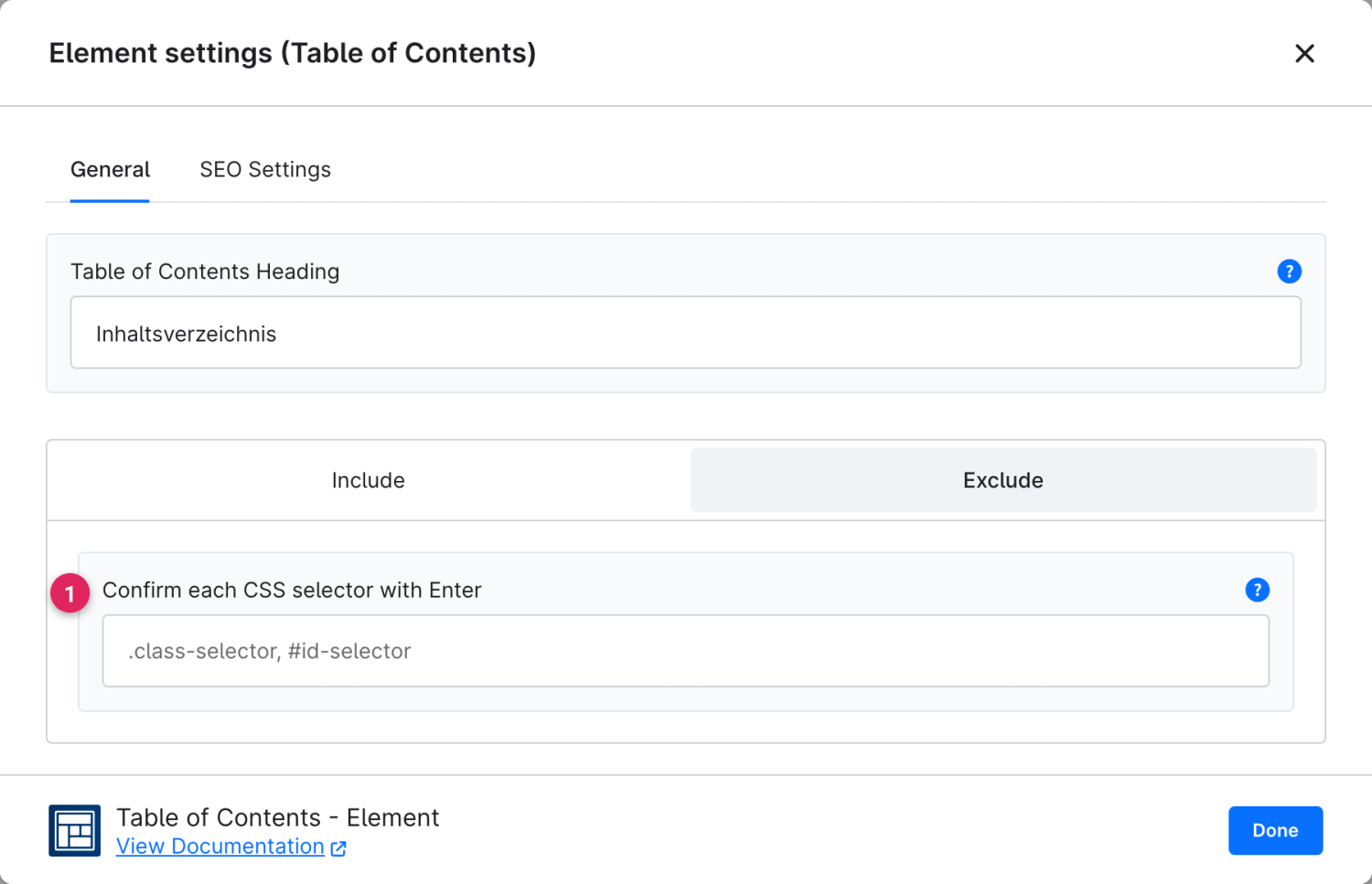
On the **Exclude** sub-tab you specifically hide individual areas from the table of contents – even if their headings actually match the chosen level.

<figure><img src="/files/Hlnbut9NddK0j9HjCgiz" alt=""><figcaption></figcaption></figure>

<table><thead><tr><th width="287">Function</th><th>Description</th></tr></thead><tbody><tr><td>Confirm each CSS selector with Enter – Exclude (1)</td><td>Use a CSS selector to define which areas should <strong>not</strong> appear in the table of contents – such as recurring banners, teasers or the table of contents itself. Here too, confirm each selector individually with <strong>Enter</strong>.</td></tr></tbody></table>

### SEO Settings

On the **SEO** tab you determine which heading type the optional index heading is output as.

{% content-ref url="/pages/LHlzFdFr8hVLrftTJKPh" %}
[SEO](/cms-bundle/en/elemente/konfigurationsbausteine/seo.md)
{% endcontent-ref %}


---

# Agent Instructions
This documentation is published with GitBook. GitBook is the documentation platform designed so that both humans and AI agents can read, navigate, and reason over technical content effectively. Learn more at gitbook.com.

## Querying This Documentation
If you need additional information that is not directly available in this page, you can query the documentation dynamically by asking a question.

Perform an HTTP GET request on the current page URL with the `ask` query parameter, and the optional `goal` query parameter:

```
GET https://docs.rh-webdesign.com/cms-bundle/en/elemente/navigation/table-of-contents.md?ask=<question>&goal=<endgoal>
```

`ask` is the immediate question: it should be specific, self-contained, and written in natural language.
`goal` is optional and describes the broader end goal you are ultimately trying to accomplish on behalf of the user. GitBook uses it to tailor the answer towards what is most useful for that goal.

The response will contain a direct answer to the question and relevant excerpts and sources from the documentation.

Use this mechanism when the answer is not explicitly present in the current page, you need clarification or additional context, or you want to retrieve related documentation sections.