> For the complete documentation index, see [llms.txt](https://docs.rh-webdesign.com/cms-bundle/llms.txt). Markdown versions of documentation pages are available by appending `.md` to page URLs; this page is available as [Markdown](https://docs.rh-webdesign.com/cms-bundle/en/elemente/medien/social-media.md).

# Social - Media

The **Social - Media** element knows two display types: in **Channels** mode you link your own social media profiles as an icon row. In **Share** mode your visitors get buttons to share the current page on their networks.

<figure><img src="/files/qbNXLfIUQxTHhHXSKBlT" alt=""><figcaption><p>Example in the storefront: linked social media channels as an icon row</p></figcaption></figure>

### Social media channels

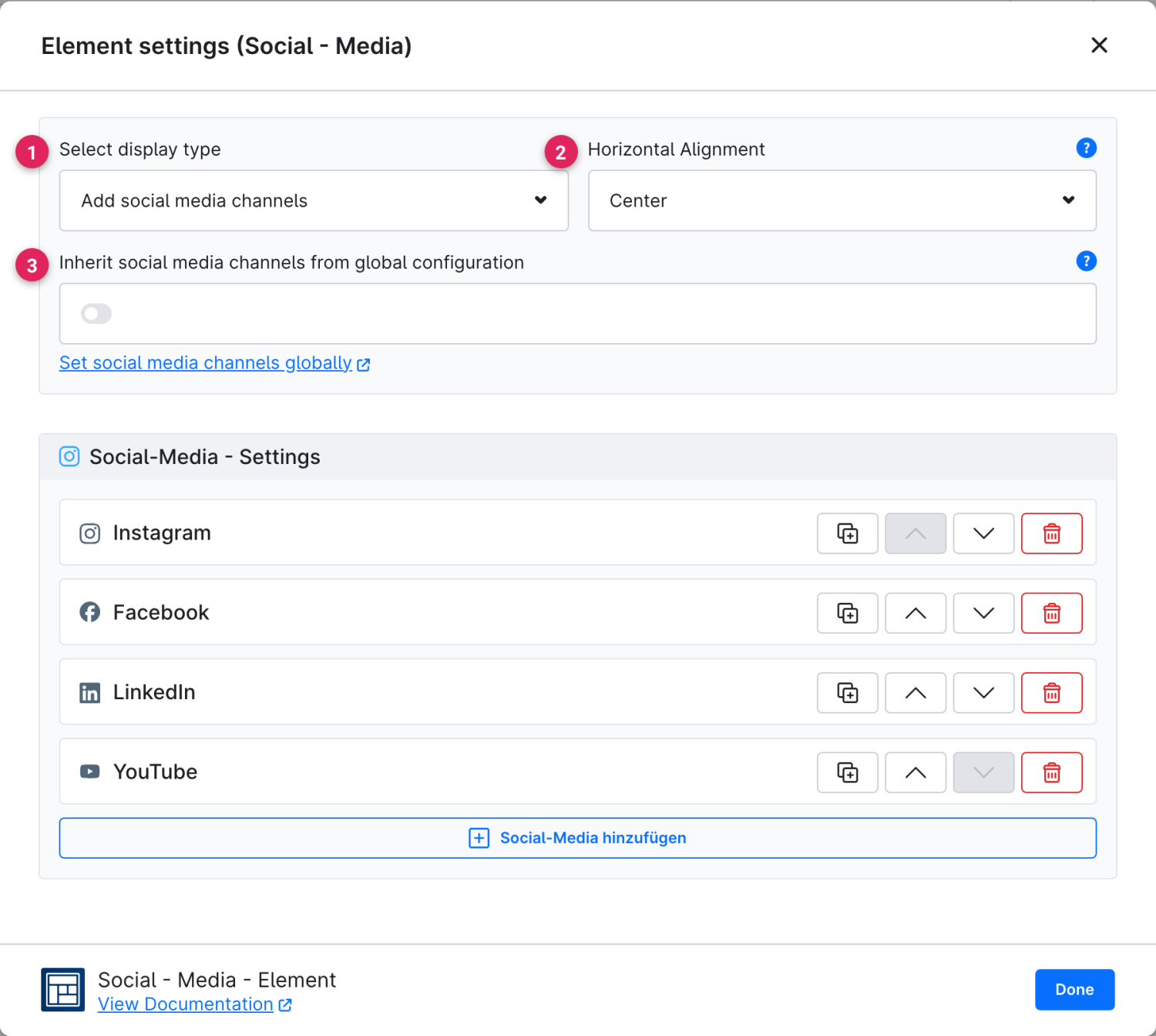
In **Channels** mode you define which profiles appear as clickable icons. You can maintain the channels directly on the element or inherit them from the global plugin configuration.

<figure><img src="/files/NqxajLpB4Ppn6Bxupgxw" alt=""><figcaption></figcaption></figure>

<table><thead><tr><th width="287">Function</th><th>Description</th></tr></thead><tbody><tr><td>Select display type (1)</td><td>Switches between <strong>Add social media channels</strong> (link your own profiles) and <strong>Share current page</strong>.</td></tr><tr><td>Horizontal Alignment (2)</td><td>Aligns the icon row left, centered or right.</td></tr><tr><td>Inherit channels from global configuration (3)</td><td>When the switch is active, the channels stored in the general plugin configuration are used. Via <strong>"Set social media channels globally"</strong> you get there directly.</td></tr><tr><td>Select social media (4)</td><td>Per entry you choose the network (icon) and store the associated URL. Using the icons on the right you can duplicate, sort or delete entries. (Appears when inheritance is off.)</td></tr></tbody></table>

{% hint style="info" %}
**Maintain once, use everywhere**

If you set your channels globally and let the elements inherit them, you only have to update a changed profile URL in a single place.
{% endhint %}

### Share the current page

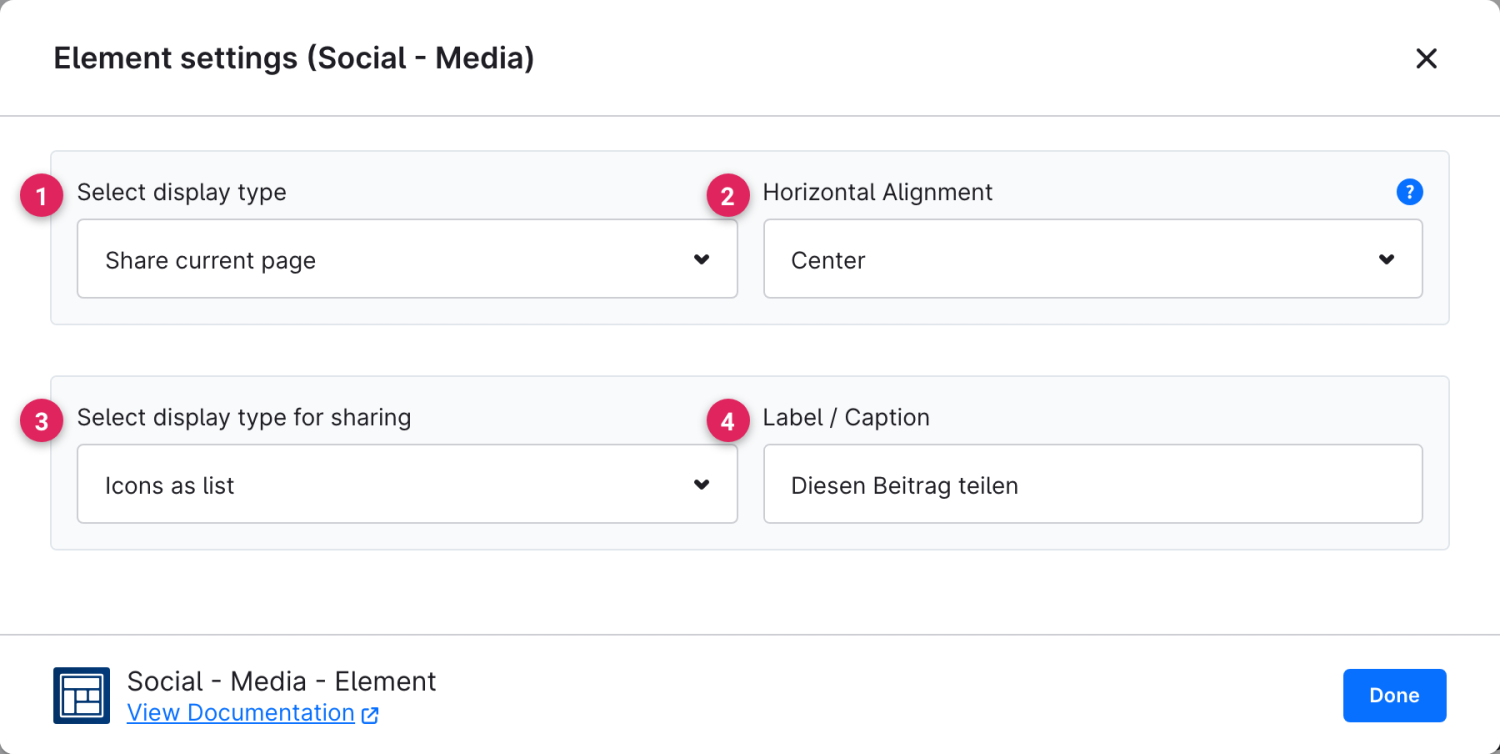
In **Share** mode the element shows buttons with which visitors can share the currently opened page on their networks – completely without your own channel data.

<figure><img src="/files/VXlBfVSmjVbI6egqoliM" alt=""><figcaption><p>Example in the storefront: share buttons with a label</p></figcaption></figure>

<figure><img src="/files/SqcL7XQp9GrocNu7AD3E" alt=""><figcaption></figcaption></figure>

<table><thead><tr><th width="287">Function</th><th>Description</th></tr></thead><tbody><tr><td>Select display type (1)</td><td>Set to <strong>Share current page</strong> here.</td></tr><tr><td>Horizontal Alignment (2)</td><td>Aligns the buttons left, centered or right.</td></tr><tr><td>Select display type for sharing (3)</td><td><strong>Icons as a list</strong> shows all share buttons directly next to each other. <strong>Offcanvas button for sharing</strong> instead shows a single button that opens the selection in a side panel.</td></tr><tr><td>Label / Caption (4)</td><td>Optional text shown above or next to the buttons.</td></tr></tbody></table>

### Maintain channels globally

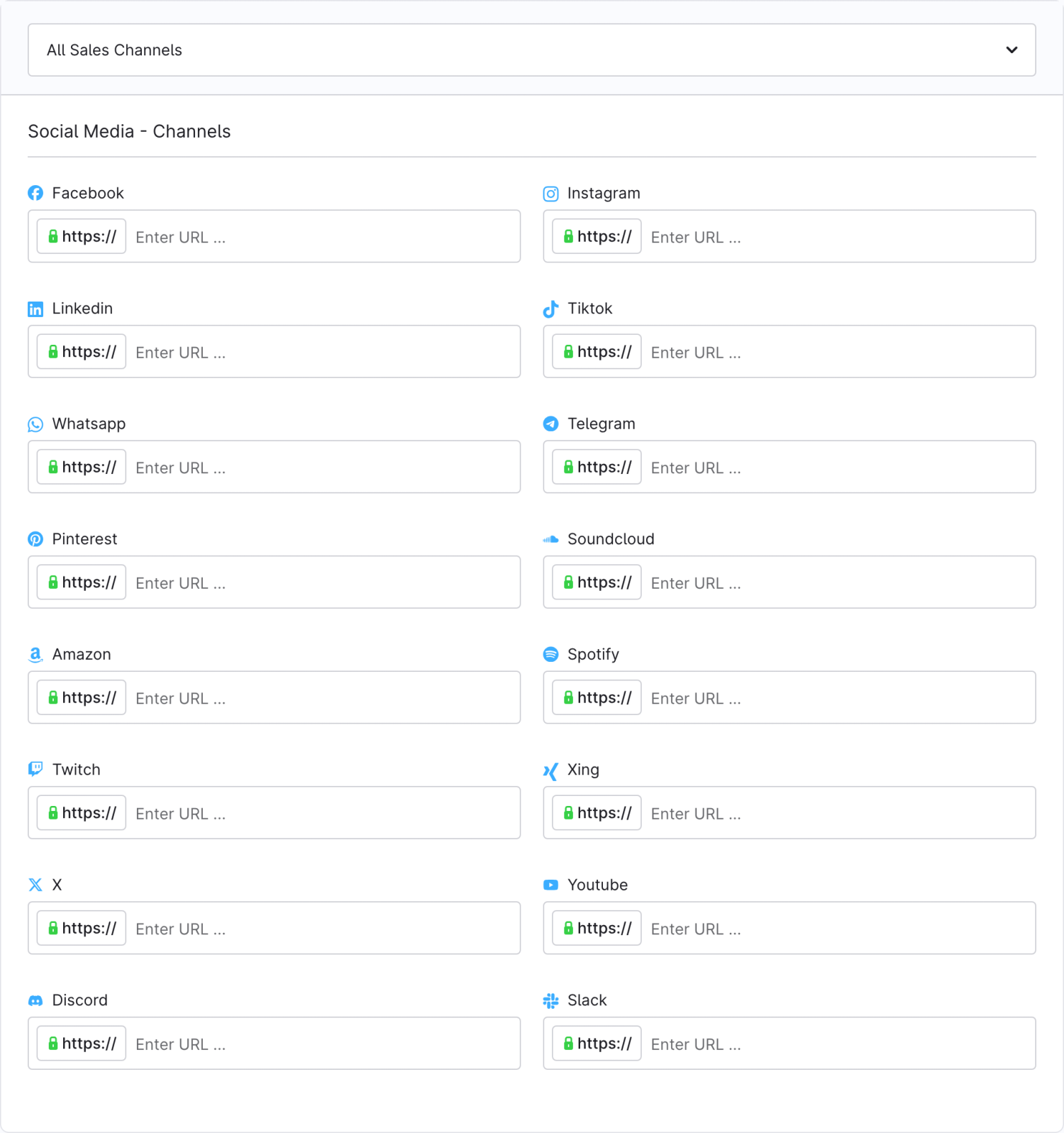
Instead of storing the channels on each element individually, you can maintain them centrally once and have the element inherit them via the **Inherit channels from global configuration** switch.

1. Open the **CMS Bundle** settings and switch to the **Advanced → Social Media** area.
2. Under **Social Media - Channels** set the network (icon) and the associated profile URL per entry and save.

<figure><img src="/files/tGYqHHC6EQQ877WjMf0z" alt=""><figcaption><p>Global social media channels in the plugin configuration</p></figcaption></figure>

{% hint style="info" %}
This way you only update a changed profile URL in a single place – all elements that inherit take over the change automatically.
{% endhint %}


---

# Agent Instructions
This documentation is published with GitBook. GitBook is the documentation platform designed so that both humans and AI agents can read, navigate, and reason over technical content effectively. Learn more at gitbook.com.

## Querying This Documentation
If you need additional information that is not directly available in this page, you can query the documentation dynamically by asking a question.

Perform an HTTP GET request on the current page URL with the `ask` query parameter, and the optional `goal` query parameter:

```
GET https://docs.rh-webdesign.com/cms-bundle/en/elemente/medien/social-media.md?ask=<question>&goal=<endgoal>
```

`ask` is the immediate question: it should be specific, self-contained, and written in natural language.
`goal` is optional and describes the broader end goal you are ultimately trying to accomplish on behalf of the user. GitBook uses it to tailor the answer towards what is most useful for that goal.

The response will contain a direct answer to the question and relevant excerpts and sources from the documentation.

Use this mechanism when the answer is not explicitly present in the current page, you need clarification or additional context, or you want to retrieve related documentation sections.