> For the complete documentation index, see [llms.txt](https://docs.rh-webdesign.com/cms-bundle/llms.txt). Markdown versions of documentation pages are available by appending `.md` to page URLs; this page is available as [Markdown](https://docs.rh-webdesign.com/cms-bundle/en/elemente/medien/image-with-hotspots.md).

# Image with Hotspots

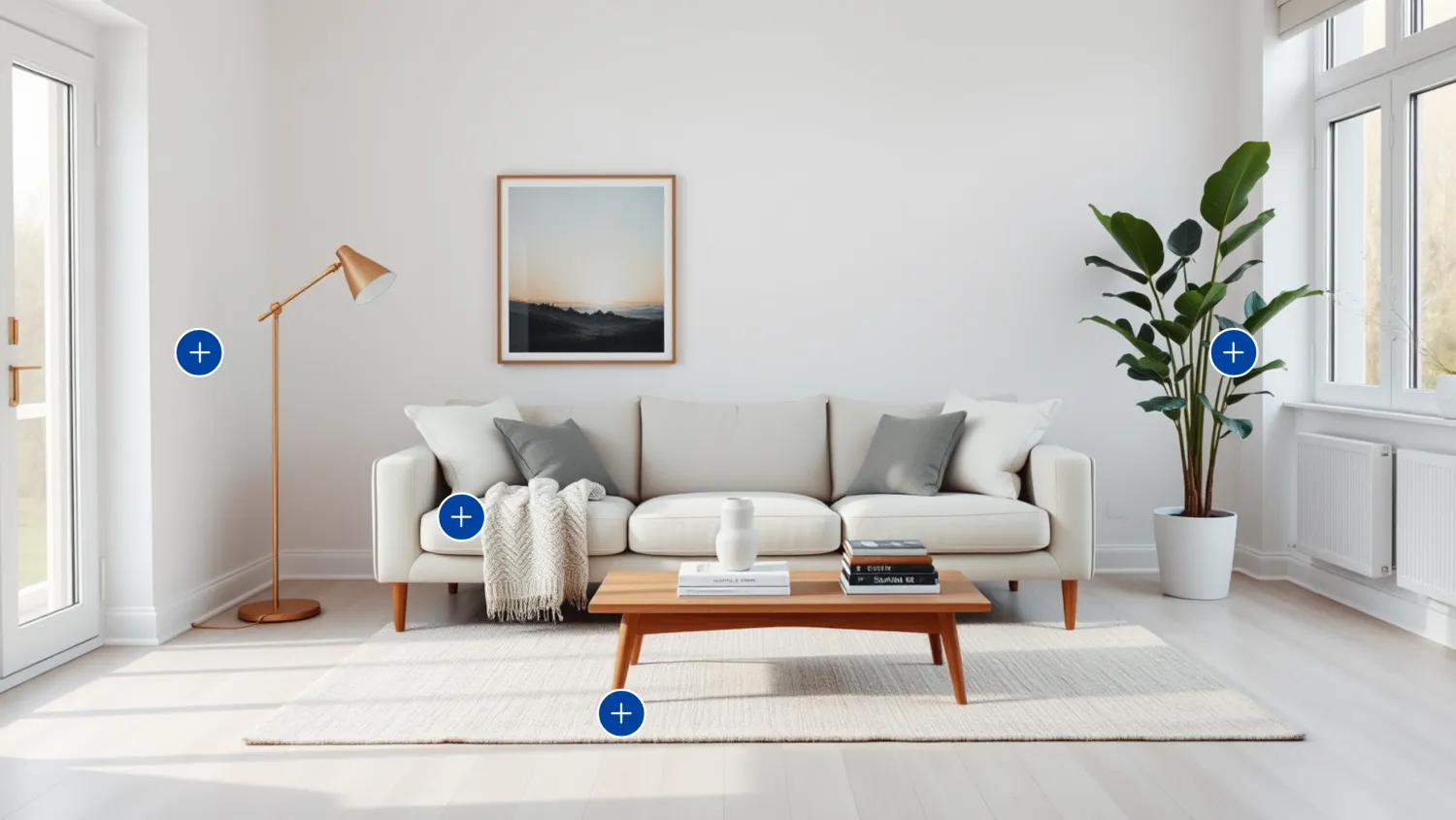
With the **Image with Hotspots** element you turn a single image into an interactive surface. At freely positionable points – the **hotspots** – small info cards with title, text and optionally a button appear on click.

This makes it possible to implement a **"Shop the Look"**, for example: a living or lifestyle image in which individual products are marked and linked directly. The element is equally suitable for explanatory graphics, maps or feature overviews.

<figure><img src="/files/mdl9w4TOjDYyNxGtrXqw" alt=""><figcaption><p>Example in the storefront: an image with four hotspots</p></figcaption></figure>

{% hint style="success" %}
**Tip for a clean result**

Choose a motif with enough calm areas so that the hotspots don't sit on important image content. For responsive behaviour, it's best to position the points in percent.
{% endhint %}

### Media / Upload

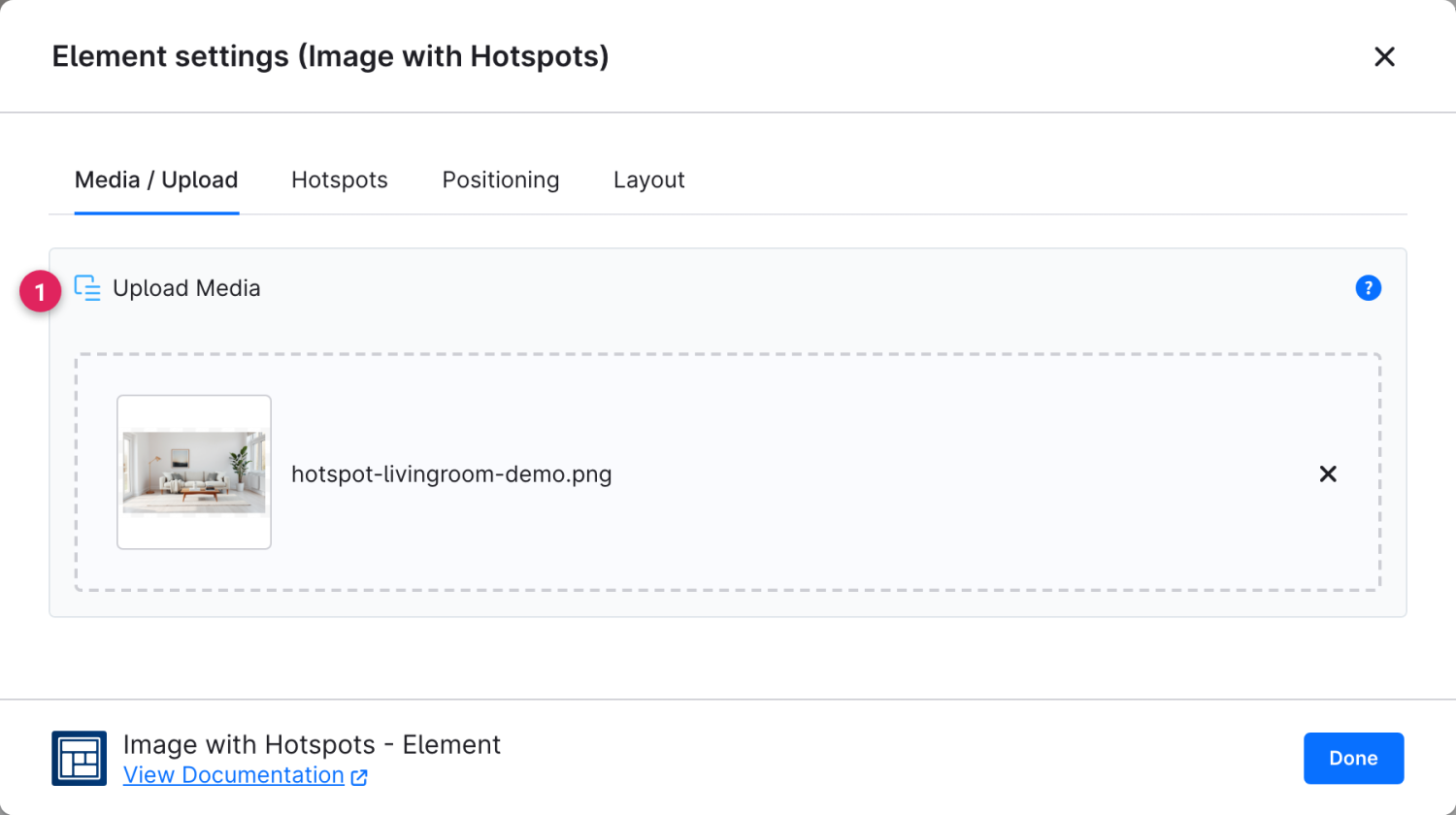
In the first tab you set the image on which the hotspots are placed.

<figure><img src="/files/64okqFIHEKfyAHiqx5c9" alt=""><figcaption></figcaption></figure>

<table><thead><tr><th width="287">Function</th><th>Description</th></tr></thead><tbody><tr><td>Upload Media (1)</td><td>Upload the background image here or assign an existing medium from the media library. Without an image, the element shows a notice.</td></tr></tbody></table>

### Hotspots

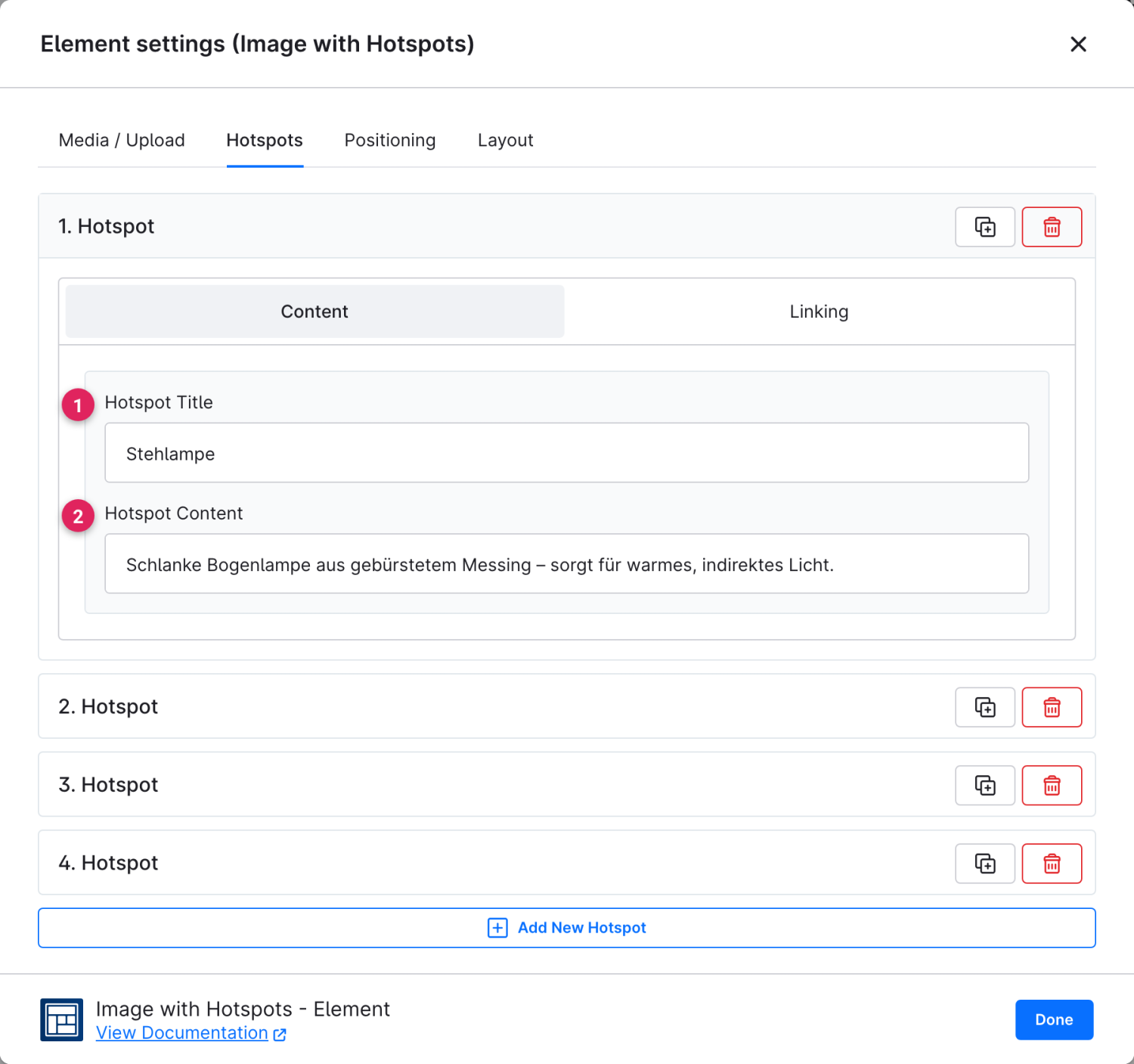
Create any number of hotspots and expand an entry to edit it. Each hotspot has the sub-tabs **Content** (title and text of the info card) and **Link** (optional target). As soon as a link is set, the **Button** tab additionally appears.

<figure><img src="/files/KGKGwuE7KJLgyCtA63C2" alt=""><figcaption></figcaption></figure>

<table><thead><tr><th width="287">Function</th><th>Description</th></tr></thead><tbody><tr><td>Hotspot Title (1)</td><td>Heading of the info card that appears when the point is clicked.</td></tr><tr><td>Hotspot Content (2)</td><td>Description text of the info card below the title.</td></tr><tr><td>Link (3)</td><td>Optional target of the hotspot (product, category, URL etc.), set on the <strong>Link</strong> sub-tab. Only once a link type is chosen does the <strong>Button</strong> tab appear.</td></tr></tbody></table>

{% hint style="info" %}
Using the icons on the right of each entry you can duplicate or delete a hotspot. With **"Add new hotspot"** you create another one.
{% endhint %}

The styling of the optional button is done via the shared building block:

{% content-ref url="/pages/IDCzxbLczQ60ESEzaHLK" %}
[Button](/cms-bundle/en/elemente/konfigurationsbausteine/button.md)
{% endcontent-ref %}

### Positioning

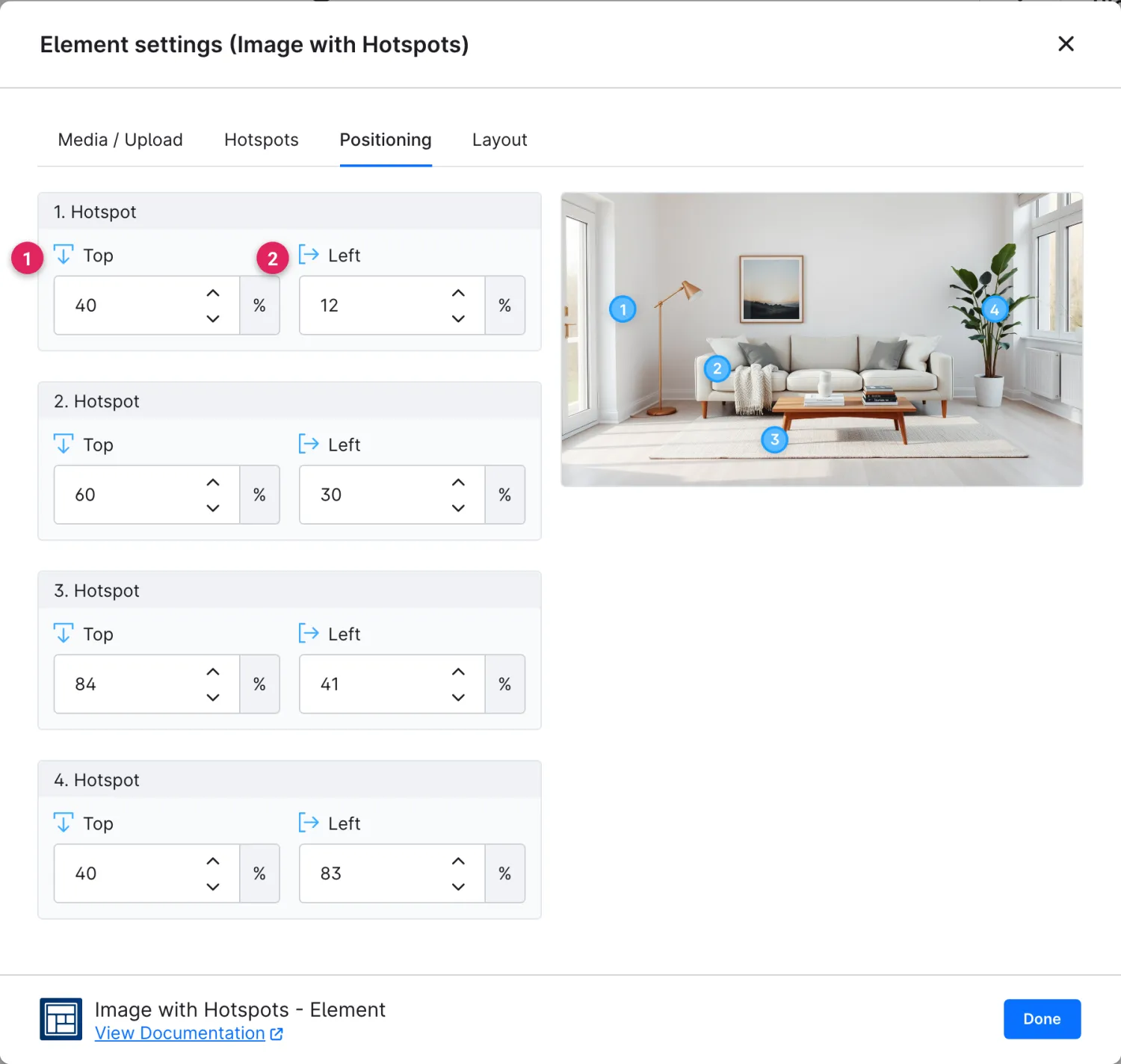
Here you determine where each hotspot sits on the image. You can enter the values exactly or drag the point directly in the preview to the desired spot with the mouse.

<figure><img src="/files/15UTF7Xw1nL8TzEIjFtt" alt=""><figcaption></figcaption></figure>

<table><thead><tr><th width="287">Function</th><th>Description</th></tr></thead><tbody><tr><td>Top (1)</td><td>Vertical position of the hotspot, measured from the top edge of the image.</td></tr><tr><td>Left (2)</td><td>Horizontal position of the hotspot, measured from the left edge of the image.</td></tr><tr><td>Preview with drag handles (3)</td><td>Drag the numbered points directly in the image – the "Top / Left" values update automatically.</td></tr></tbody></table>

### Layout

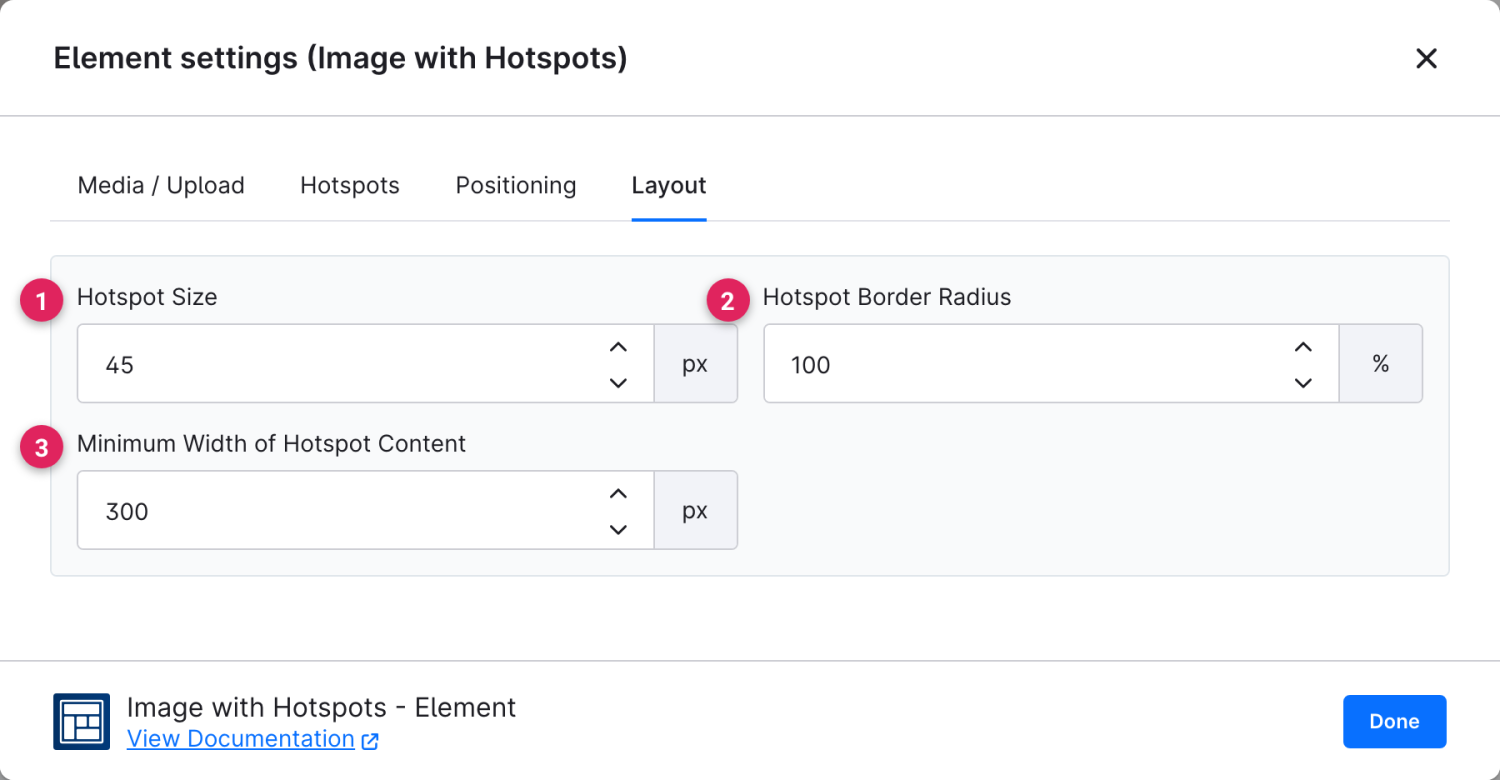
Finally, you determine the appearance of the points and their info cards – matching the style of your shop.

<figure><img src="/files/8dmUwiDwe7QFB40o5KPd" alt=""><figcaption></figcaption></figure>

<table><thead><tr><th width="287">Function</th><th>Description</th></tr></thead><tbody><tr><td>Hotspot Size (1)</td><td>Diameter of the points in percent or pixels.</td></tr><tr><td>Hotspot Border Radius (2)</td><td>Shape of the points: 100 % results in a circle, smaller values in rounded squares.</td></tr><tr><td>Minimum Width of Hotspot Content (3)</td><td>Minimum width of the displayed info card – important for clean line breaks.</td></tr></tbody></table>


---

# Agent Instructions
This documentation is published with GitBook. GitBook is the documentation platform designed so that both humans and AI agents can read, navigate, and reason over technical content effectively. Learn more at gitbook.com.

## Querying This Documentation
If you need additional information that is not directly available in this page, you can query the documentation dynamically by asking a question.

Perform an HTTP GET request on the current page URL with the `ask` query parameter, and the optional `goal` query parameter:

```
GET https://docs.rh-webdesign.com/cms-bundle/en/elemente/medien/image-with-hotspots.md?ask=<question>&goal=<endgoal>
```

`ask` is the immediate question: it should be specific, self-contained, and written in natural language.
`goal` is optional and describes the broader end goal you are ultimately trying to accomplish on behalf of the user. GitBook uses it to tailor the answer towards what is most useful for that goal.

The response will contain a direct answer to the question and relevant excerpts and sources from the documentation.

Use this mechanism when the answer is not explicitly present in the current page, you need clarification or additional context, or you want to retrieve related documentation sections.