> For the complete documentation index, see [llms.txt](https://docs.rh-webdesign.com/cms-bundle/llms.txt). Markdown versions of documentation pages are available by appending `.md` to page URLs; this page is available as [Markdown](https://docs.rh-webdesign.com/cms-bundle/en/blog/verwaltung/import-export.md).

# Import & Export

Import and export posts via CSV – ideal for bulk maintenance and migrations.

Via **Import & Export** you maintain many posts at once: you import a CSV file or export your existing content in the same format. Import and export use the same column layout, so an export can always be read back in.

## Import

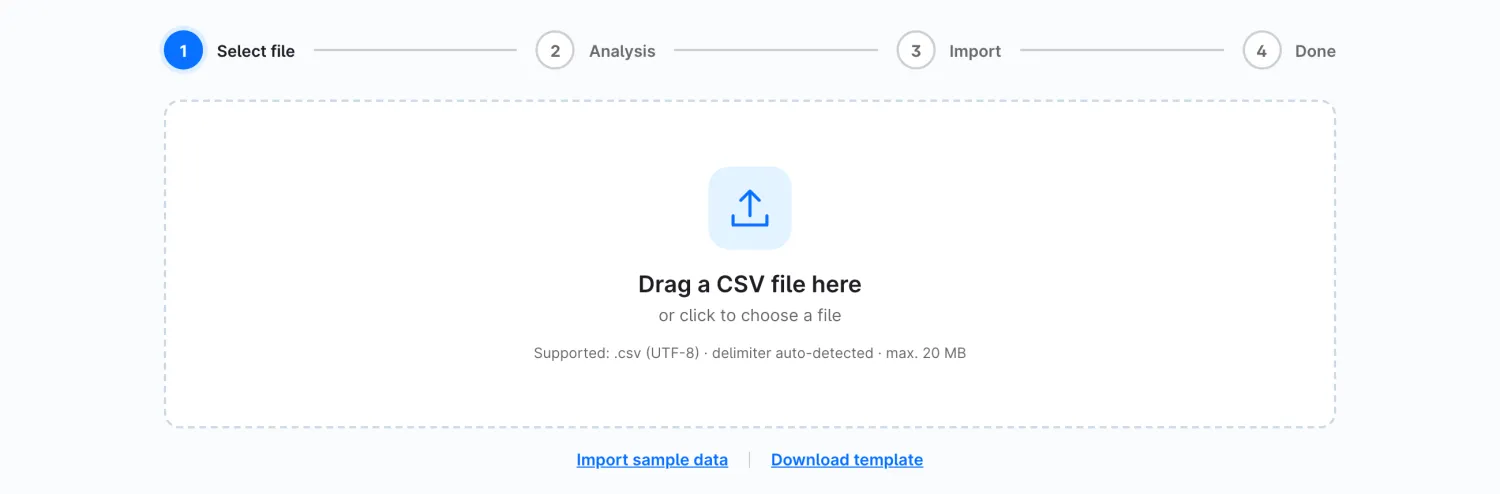
You reach the import via the **Import** button on the [dashboard](/cms-bundle/en/blog/verwaltung/dashboard.md). A wizard guides you in four steps: **Select file → Analysis → Import → Done**.

<figure><img src="https://118894700-files.gitbook.io/~/files/v0/b/gitbook-x-prod.appspot.com/o/spaces%2Fhdsmo3ttoHQpDlitXnzA%2Fuploads%2Fgit-blob-1fba719be2c800ec9ef3057882fc1ac3923a1628%2Fblog-import.webp?alt=media" alt=""><figcaption><p>Step 1 of the import wizard</p></figcaption></figure>

<table><thead><tr><th width="287">Function</th><th>Description</th></tr></thead><tbody><tr><td>Drag a CSV file here</td><td>Drop the file via drag-and-drop or click to choose it. Supported are .csv (UTF-8) up to 20 MB; the separator is detected automatically.</td></tr><tr><td>Import sample data</td><td>Loads a ready-made sample dataset – handy for trying things out.</td></tr><tr><td>Download template</td><td>Downloads an empty CSV with all columns as a starting point.</td></tr></tbody></table>

After selecting, the wizard analyses the file (detected records and columns), runs the import and shows a summary at the end (created posts, categories, tags, authors).

{% hint style="success" %}
Every import is logged. Via the **import history** you can undo a complete import if needed – including the blogs, categories, tags and authors newly created during it.
{% endhint %}

### CSV format

Columns with a language reference carry the language code as a suffix (e.g. `title.de-DE`, `title.en-GB`). Multiple values (blogs, tags) are separated with `|`.

<table><thead><tr><th width="220">Column</th><th>Description</th></tr></thead><tbody><tr><td>key</td><td>Unique key of the row.</td></tr><tr><td>blogs</td><td>Blog(s) the post is assigned to (several with <code>|</code>).</td></tr><tr><td>categories</td><td>Category of the post.</td></tr><tr><td>tags</td><td>Tags (several with <code>|</code>).</td></tr><tr><td>author</td><td>Author – created automatically if needed.</td></tr><tr><td>status</td><td><code>draft</code>, <code>scheduled</code> or <code>published</code>.</td></tr><tr><td>published_at</td><td>Publication date (e.g. <code>2025-06-22</code>).</td></tr><tr><td>impressions</td><td>Initial view count.</td></tr><tr><td>layout</td><td>Optional layout name.</td></tr><tr><td>title.&#x3C;locale></td><td>Title per language.</td></tr><tr><td>description.&#x3C;locale></td><td>Main text (HTML) per language.</td></tr><tr><td>seo_path.&#x3C;locale></td><td>URL slug per language.</td></tr><tr><td>meta_title.&#x3C;locale> / meta_description.&#x3C;locale></td><td>SEO fields per language.</td></tr></tbody></table>

## Export

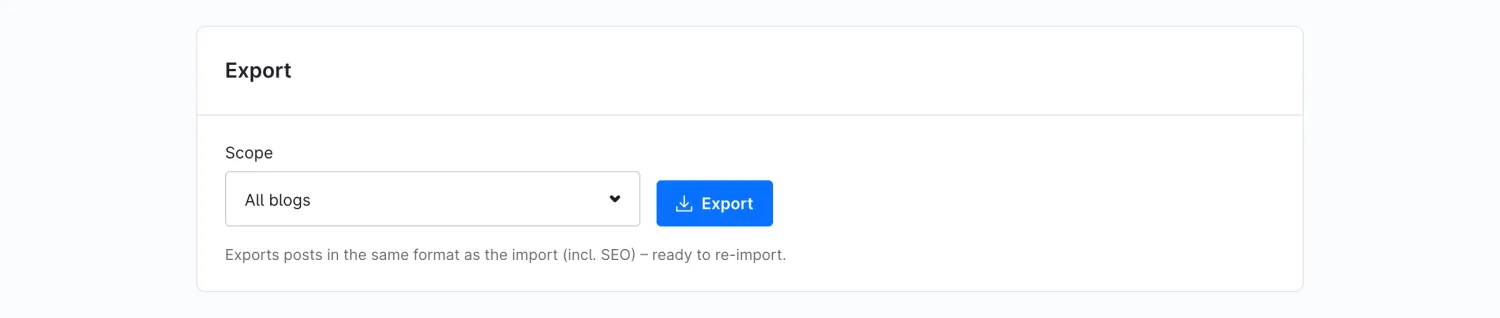
You find the export in the import area in the **Export** tab.

<figure><img src="https://118894700-files.gitbook.io/~/files/v0/b/gitbook-x-prod.appspot.com/o/spaces%2Fhdsmo3ttoHQpDlitXnzA%2Fuploads%2Fgit-blob-d22b9bc9599ea6e38256633927898d845e1b6b32%2Fblog-export.webp?alt=media" alt=""><figcaption></figcaption></figure>

<table><thead><tr><th width="287">Function</th><th>Description</th></tr></thead><tbody><tr><td>Scope</td><td>Choose <strong>All blogs</strong> or a single blog as the export scope.</td></tr><tr><td>Export</td><td>Downloads the CSV – in the same format as the import (including SEO), so it can be imported again directly.</td></tr></tbody></table>