> For the complete documentation index, see [llms.txt](https://docs.rh-webdesign.com/cms-bundle/llms.txt). Markdown versions of documentation pages are available by appending `.md` to page URLs; this page is available as [Markdown](https://docs.rh-webdesign.com/cms-bundle/en/blog/elemente/beitraege.md).

# Posts

Display blog posts as a grid, list, magazine or compact view – automatically or filtered by blog, category or tag.

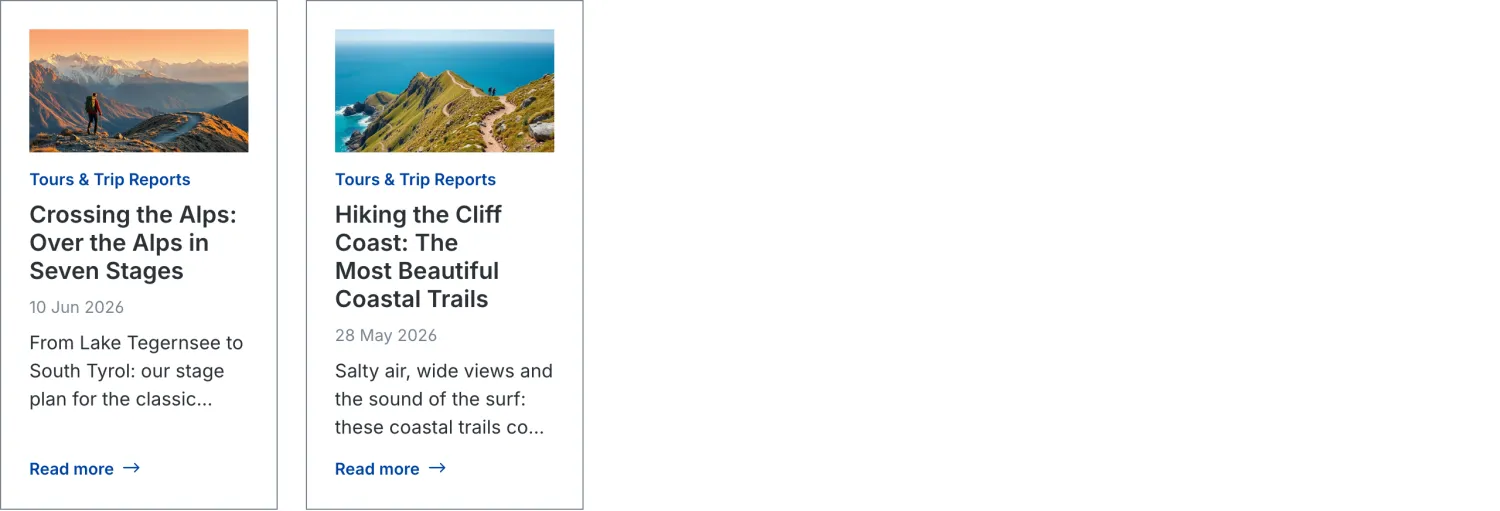
The **Posts** element displays a list of your blog posts – as a grid, a list, in magazine style or compact. It is the central element for overview and category pages and automatically shows the matching posts per page with cover image, category, date and excerpt.

{% hint style="success" %}
The source defaults to **Automatic**: on a blog overview all posts of the blog appear, on a category page only those of the respective category. You can, however, also fix the selection to a specific blog, category or tag.
{% endhint %}

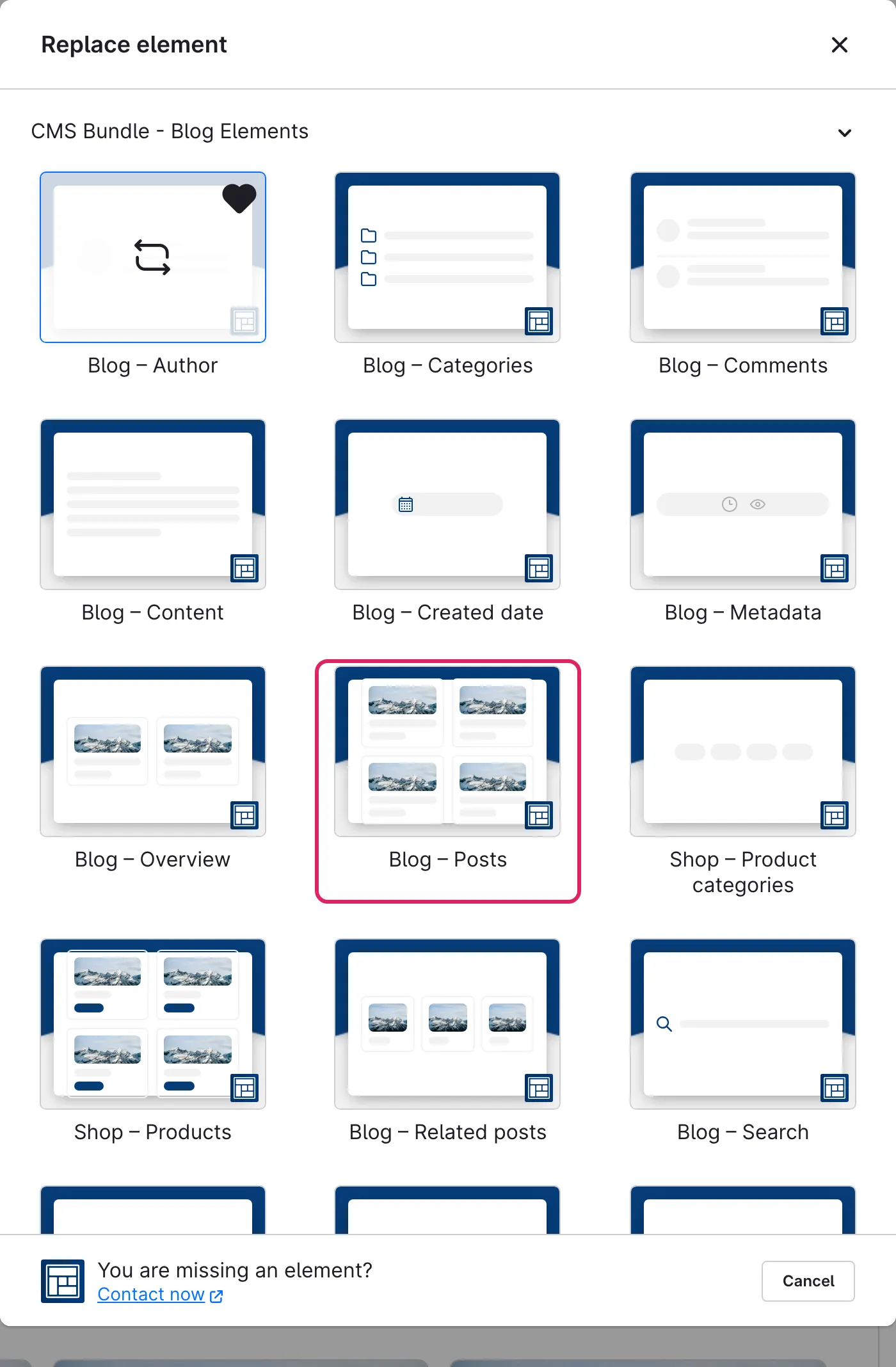
Use Shopware's **element picker** (the **Replace element** button) to add the **Posts** element at the desired position – the field outlined in red.

<figure><img src="https://118894700-files.gitbook.io/~/files/v0/b/gitbook-x-prod.appspot.com/o/spaces%2Fhdsmo3ttoHQpDlitXnzA%2Fuploads%2Fgit-blob-5d21a57eb79bc5471081c1704638a2d91c70304d%2Fblog-beitraege-auswahl.webp?alt=media" alt=""><figcaption></figcaption></figure>

<figure><img src="https://118894700-files.gitbook.io/~/files/v0/b/gitbook-x-prod.appspot.com/o/spaces%2Fhdsmo3ttoHQpDlitXnzA%2Fuploads%2Fgit-blob-90d6c432b2a32cac073509c4935cdaa3c4f03f77%2Fblog-beitraege-beispiel.webp?alt=media" alt=""><figcaption><p>Example in the storefront: posts as a grid with cover image, category, date and excerpt</p></figcaption></figure>

### General

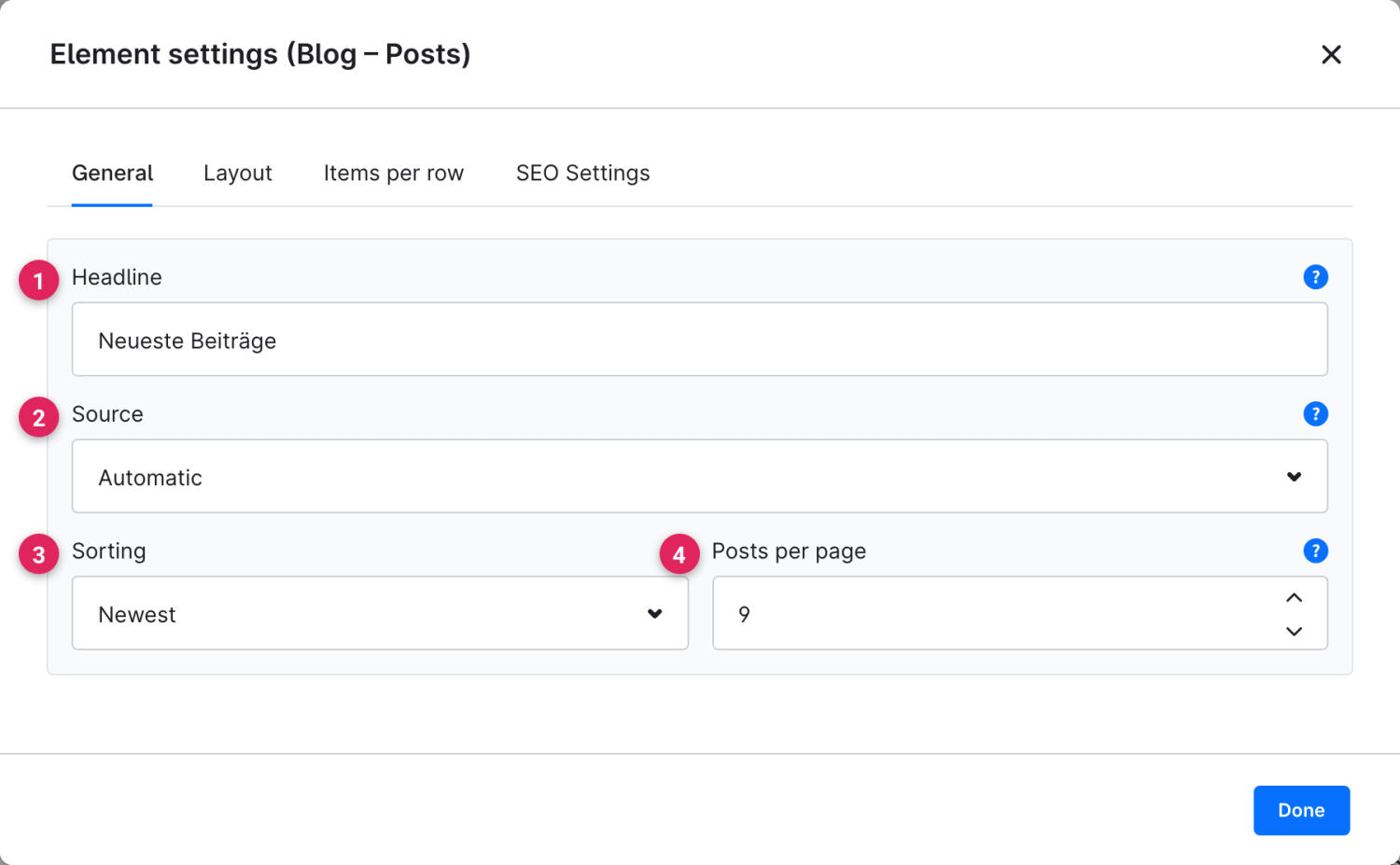
On the **General** tab you define which posts are shown and how they are sorted.

<figure><img src="https://118894700-files.gitbook.io/~/files/v0/b/gitbook-x-prod.appspot.com/o/spaces%2Fhdsmo3ttoHQpDlitXnzA%2Fuploads%2Fgit-blob-32ff83c1c07218db52d46816e6392475f654148d%2Fblog-beitraege-allgemein.webp?alt=media" alt=""><figcaption></figcaption></figure>

<table><thead><tr><th width="287">Function</th><th>Description</th></tr></thead><tbody><tr><td>Headline (1)</td><td>Optional headline above the post list. If the field is empty, no headline is shown.</td></tr><tr><td>Source (2)</td><td>Determines which posts are loaded. With <strong>Automatic</strong> the selection follows the current page (blog or category). If you choose <strong>Specific blog</strong>, <strong>Specific category</strong> or <strong>Specific tag</strong>, an additional field appears below in which you select the concrete source.</td></tr><tr><td>Sorting (3)</td><td>Order of the posts: <strong>Newest</strong>, <strong>Oldest</strong>, <strong>Most impressions</strong> or alphabetically by <strong>Title</strong>.</td></tr><tr><td>Posts per page (4)</td><td>How many posts are shown at once. If there are more, your visitors page through them via pagination.</td></tr></tbody></table>

### Layout

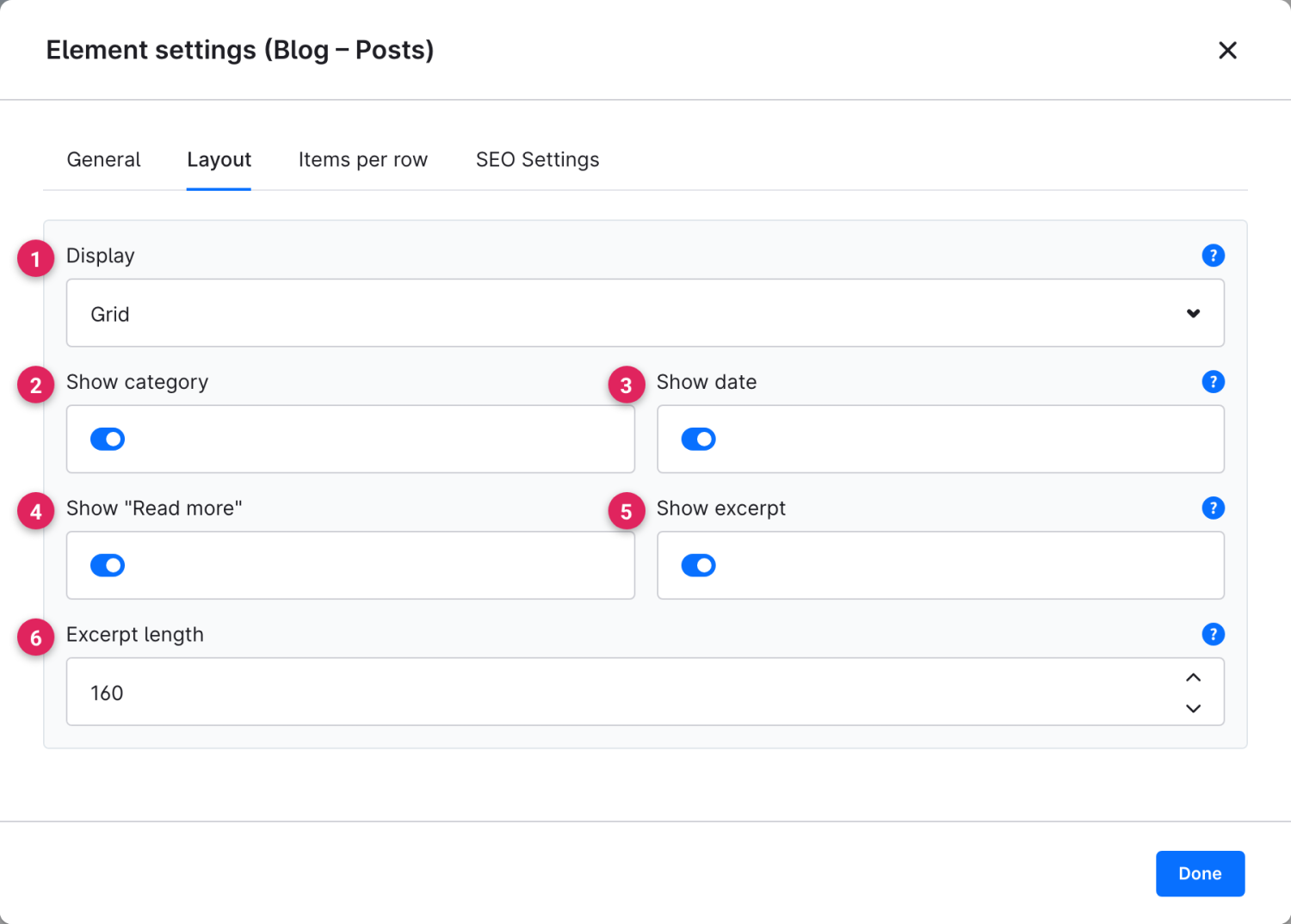
On the **Layout** tab you set how the posts are displayed and which information appears per post.

<figure><img src="https://118894700-files.gitbook.io/~/files/v0/b/gitbook-x-prod.appspot.com/o/spaces%2Fhdsmo3ttoHQpDlitXnzA%2Fuploads%2Fgit-blob-81a80a0348a2a106f7264df43ed4c1aaaa3edf71%2Fblog-beitraege-layout.webp?alt=media" alt=""><figcaption></figcaption></figure>

<table><thead><tr><th width="287">Function</th><th>Description</th></tr></thead><tbody><tr><td>Display (1)</td><td>The arrangement of the posts. See the table below for the available layouts.</td></tr><tr><td>Show category (2)</td><td>Shows the category above each post's title.</td></tr><tr><td>Show date (3)</td><td>Shows the post's publication date.</td></tr><tr><td>Show "Read more" (4)</td><td>Shows a "Read more" link below each post leading to the full post page.</td></tr><tr><td>Show excerpt (5)</td><td>Shows a short text excerpt of the post below the title.</td></tr><tr><td>Excerpt length (6)</td><td>Maximum length of the excerpt in characters. Only visible when <strong>Show excerpt</strong> is active.</td></tr></tbody></table>

<table><thead><tr><th width="287">Display</th><th>Description</th></tr></thead><tbody><tr><td>Grid</td><td>Posts as an even tile grid. You set the number of columns on the <strong>Items per row</strong> tab.</td></tr><tr><td>List</td><td>Posts stacked as wide rows – ideal for text-heavy overviews.</td></tr><tr><td>Magazine (first large)</td><td>The newest post is highlighted large, the rest follow below in the grid.</td></tr><tr><td>Compact</td><td>Space-saving list without a cover image – good for sidebars or a "More posts" box.</td></tr></tbody></table>

### Items per row

For the **Grid** and **Magazine** layouts you set on the **Items per row** tab how many posts appear per row – separately for desktop, tablet and smartphone.

{% content-ref url="/pages/kXnecx9xgMjluse3dktl" %}
[Elements per Row](/cms-bundle/en/elemente/konfigurationsbausteine/elemente-pro-reihe.md)
{% endcontent-ref %}

### SEO

On the **SEO Settings** tab you control which HTML heading level the post titles are marked up with.

{% content-ref url="/pages/LHlzFdFr8hVLrftTJKPh" %}
[SEO](/cms-bundle/en/elemente/konfigurationsbausteine/seo.md)
{% endcontent-ref %}