> For the complete documentation index, see [llms.txt](https://docs.rh-webdesign.com/cms-bundle/llms.txt). Markdown versions of documentation pages are available by appending `.md` to page URLs; this page is available as [Markdown](https://docs.rh-webdesign.com/cms-bundle/elemente/medien/social-media.md).

# Social - Media

Das Element **Social - Media** kennt zwei Darstellungstypen: Im Modus **Kanäle** verlinkst du deine eigenen Social-Media-Profile als Icon-Reihe. Im Modus **Teilen** erhalten deine Besucher Schaltflächen, um die aktuelle Seite in ihren Netzwerken zu teilen.

<figure><img src="/files/FPzAtLpm2WOPY8OxaYJx" alt=""><figcaption><p>Beispiel im Storefront: verlinkte Social-Media-Kanäle als Icon-Reihe</p></figcaption></figure>

### Social-Media Kanäle

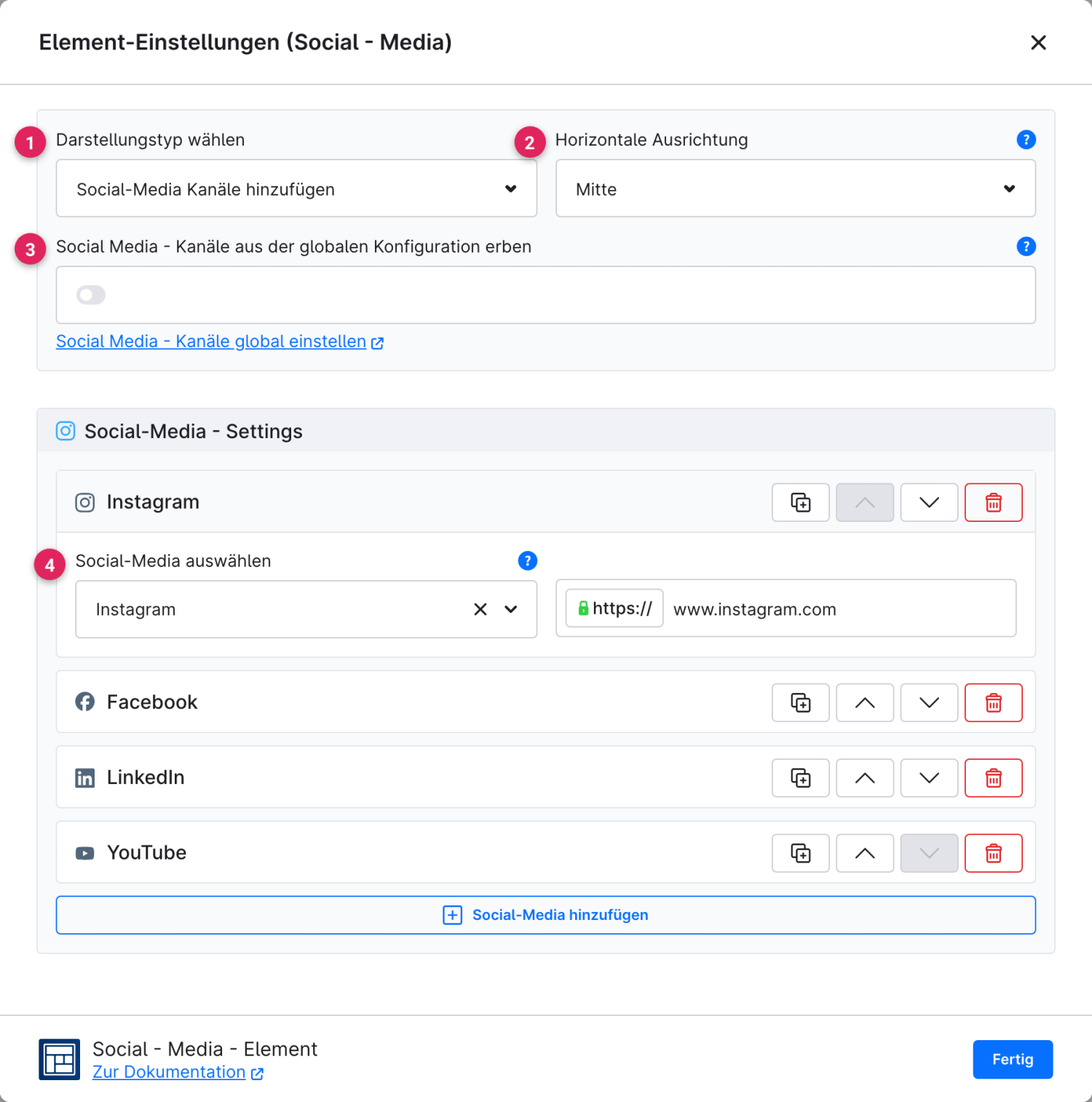
Im Modus **Kanäle** legst du fest, welche Profile als anklickbare Icons erscheinen. Du kannst die Kanäle direkt am Element pflegen oder sie aus der globalen Plugin-Konfiguration erben.

<figure><img src="/files/k08V9JAMfyVOit3UjvwO" alt=""><figcaption></figcaption></figure>

<table><thead><tr><th width="287">Funktion</th><th>Beschreibung</th></tr></thead><tbody><tr><td>Darstellungstyp wählen (1)</td><td>Wechselt zwischen <strong>Social-Media Kanäle hinzufügen</strong> (eigene Profile verlinken) und <strong>Aktuelle Seite teilen</strong>.</td></tr><tr><td>Horizontale Ausrichtung (2)</td><td>Richtet die Icon-Reihe links, zentriert oder rechts aus.</td></tr><tr><td>Kanäle aus der globalen Konfiguration erben (3)</td><td>Ist der Schalter aktiv, werden die in der allgemeinen Plugin-Konfiguration hinterlegten Kanäle übernommen. Über <strong>„Social Media - Kanäle global einstellen"</strong> gelangst du direkt dorthin.</td></tr><tr><td>Social-Media auswählen (4)</td><td>Pro Eintrag wählst du das Netzwerk (Icon) und hinterlegst die zugehörige URL. Über die Symbole rechts kannst du Einträge duplizieren, sortieren oder löschen.</td></tr></tbody></table>

{% hint style="info" %}
**Einmal pflegen, überall nutzen**

Wenn du deine Kanäle global setzt und an den Elementen erben lässt, musst du eine geänderte Profil-URL nur an einer einzigen Stelle aktualisieren.
{% endhint %}

### Aktuelle Seite teilen

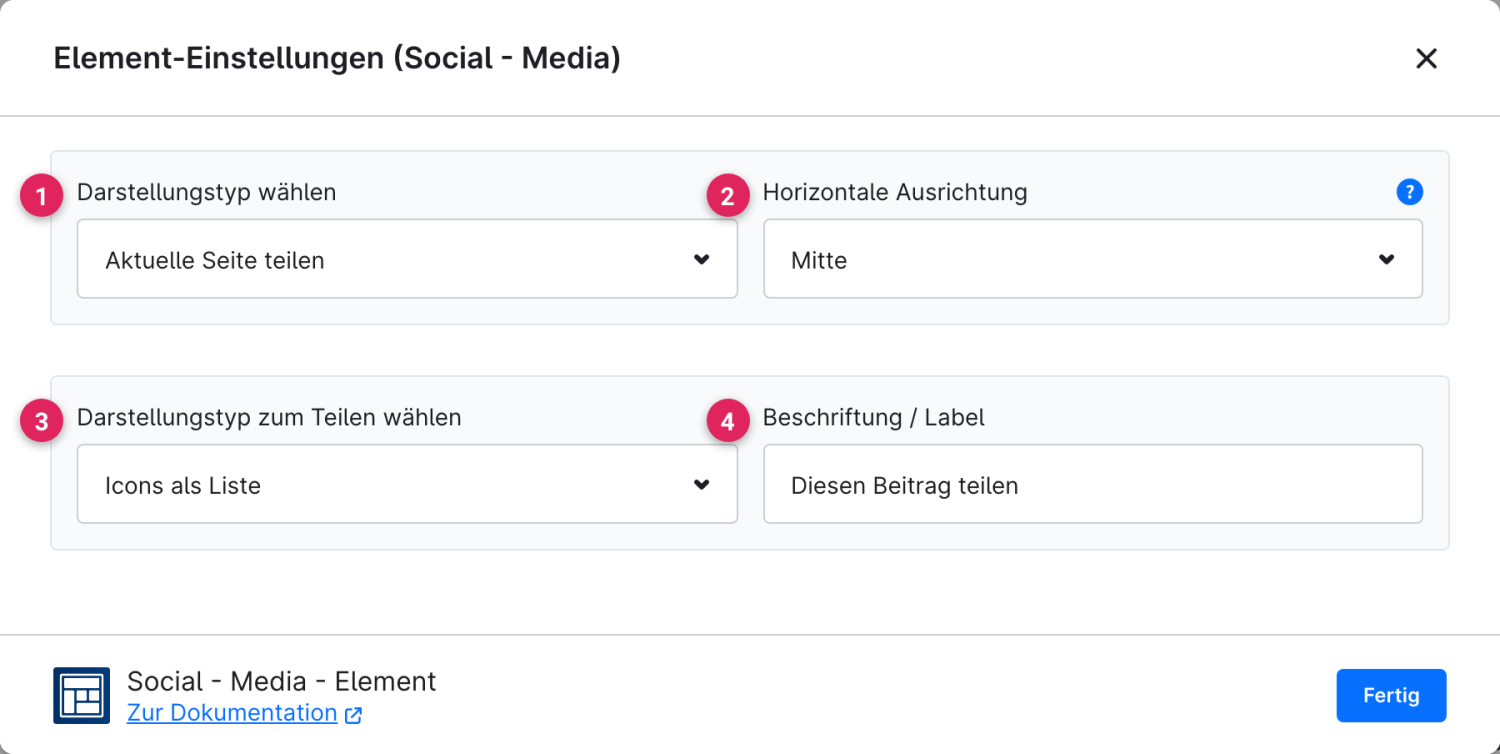
Im Modus **Teilen** blendet das Element Schaltflächen ein, mit denen Besucher die aktuell aufgerufene Seite in ihren Netzwerken teilen können – ganz ohne eigene Kanaldaten.

<figure><img src="/files/A1Lw6nZYmiZhml3YrYaj" alt=""><figcaption><p>Beispiel im Storefront: Teilen-Schaltflächen mit Beschriftung</p></figcaption></figure>

<figure><img src="/files/73RnHJEuzjsnUJl8sefg" alt=""><figcaption></figcaption></figure>

<table><thead><tr><th width="287">Funktion</th><th>Beschreibung</th></tr></thead><tbody><tr><td>Darstellungstyp wählen (1)</td><td>Hier auf <strong>Aktuelle Seite teilen</strong> gestellt.</td></tr><tr><td>Horizontale Ausrichtung (2)</td><td>Richtet die Schaltflächen links, zentriert oder rechts aus.</td></tr><tr><td>Darstellungstyp zum Teilen wählen (3)</td><td><strong>Icons als Liste</strong> zeigt alle Teilen-Schaltflächen direkt nebeneinander. <strong>Offcanvas Button zum Teilen</strong> blendet stattdessen einen einzelnen Button ein, der die Auswahl in einem seitlichen Panel öffnet.</td></tr><tr><td>Beschriftung / Label (4)</td><td>Optionaler Text, der über bzw. neben den Schaltflächen angezeigt wird.</td></tr></tbody></table>

### Kanäle global pflegen

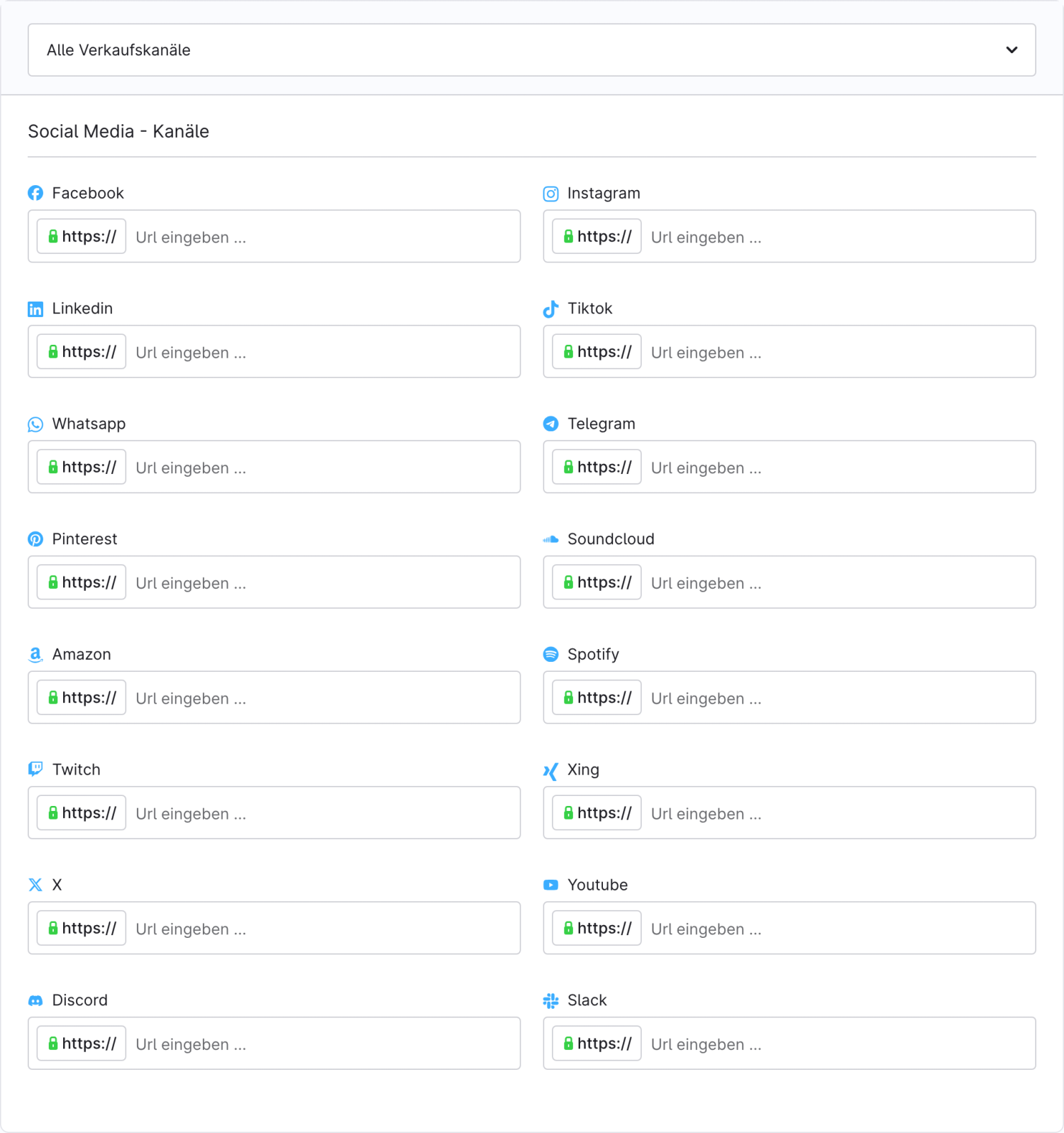
Statt die Kanäle an jedem Element einzeln zu hinterlegen, kannst du sie einmal zentral pflegen und am Element über den Schalter **Kanäle aus der globalen Konfiguration erben** übernehmen lassen.

1. Öffne die Einstellungen des **CMS Bundles** und wechsle in den Bereich **Erweitert → Social Media**.
2. Lege unter **Social Media - Kanäle** je Eintrag das Netzwerk (Icon) und die zugehörige Profil-URL fest und speichere.

<figure><img src="/files/t2cMbeP6sV5ZPOeT3p6T" alt=""><figcaption><p>Globale Social-Media-Kanäle in der Plugin-Konfiguration</p></figcaption></figure>

{% hint style="info" %}
So aktualisierst du eine geänderte Profil-URL nur an einer einzigen Stelle – alle Elemente, die erben, übernehmen die Änderung automatisch.
{% endhint %}


---

# Agent Instructions
This documentation is published with GitBook. GitBook is the documentation platform designed so that both humans and AI agents can read, navigate, and reason over technical content effectively. Learn more at gitbook.com.

## Querying This Documentation
If you need additional information that is not directly available in this page, you can query the documentation dynamically by asking a question.

Perform an HTTP GET request on the current page URL with the `ask` query parameter, and the optional `goal` query parameter:

```
GET https://docs.rh-webdesign.com/cms-bundle/elemente/medien/social-media.md?ask=<question>&goal=<endgoal>
```

`ask` is the immediate question: it should be specific, self-contained, and written in natural language.
`goal` is optional and describes the broader end goal you are ultimately trying to accomplish on behalf of the user. GitBook uses it to tailor the answer towards what is most useful for that goal.

The response will contain a direct answer to the question and relevant excerpts and sources from the documentation.

Use this mechanism when the answer is not explicitly present in the current page, you need clarification or additional context, or you want to retrieve related documentation sections.